
Standalone Programming
Program Roversa without a computer!
Roversa’s Standalone Mode lets you explore computer science concepts using the buttons right on the robot. Create sequences of movements, preview your instructions, and watch Roversa bring your program to life. No computer or additional device needed!
Get to know your buttons
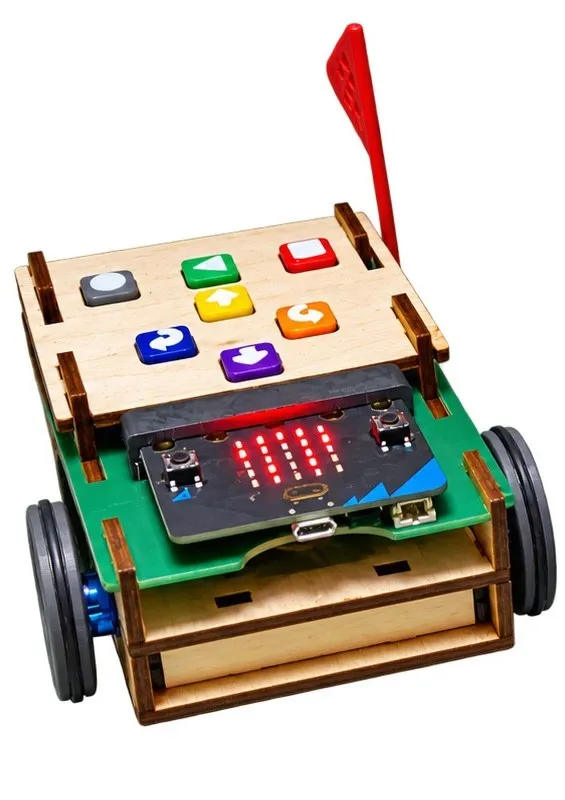
Roversa has seven buttons that let you create and control your programs.
| Button | Name | What it does |
|---|---|---|
 |
Forward ↑ | Add a forward step to your program. |
 |
Backward ↓ | Add a backward step to your program. |
 |
Left ← | Add a left turn to your program. |
 |
Right → | Add a right turn to your program. |
 |
Green Play | Run your program. |
 |
Gray Menu | Preview your program on the micro:bit LED display. |
 |
Red Stop | Clear your program at any time. |
Create your first program
- Enter your instructions. Press the directional buttons in any order to create a sequence of movements. Each button press adds an instruction to your program.
- Preview your program. Press the gray Menu button to see your sequence of instructions on the micro:bit display.
- Run your program. Place Roversa on the floor or a mat and press the green Play button. Watch Roversa follow your instructions!
Ready to try again? After Roversa finishes running your program, it automatically clears the instructions so you can create a new one. You can also press the red Stop button to clear your program before running it.
More button commands
Did you know the micro:bit logo is also a touch-sensitive button? Use it together with Roversa’s control buttons to access additional features.
| Button combination | What it does |
|---|---|
| micro:bit logo + Play | Open the Calibration Wizard to fine-tune Roversa’s movement. |
| micro:bit logo + Stop | Switch to Bluetooth Mode to work with Roversa using a Bluetooth connection. |
| micro:bit logo + Menu | Access additional menu options and settings. |
Keep exploring
Experiment with different sequences of instructions to discover how changing the order of commands changes Roversa’s movement.
Looking for more ideas? Explore our free classroom lessons and activities for creative ways to use Roversa.