Download Code

After you have created a program, you will need to download your code onto the micro:bit on your Roversa. Plug the micro:bit into your computer and either pair it (preferred option) or download as file (alternative option).

Note: Be aware that when you start using MakeCode, the buttons on Roversa will no longer function as they do in Standalone Mode. If you want to switch back to Standalone Mode, follow instructions for uploading the firmware onto the micro:bit.
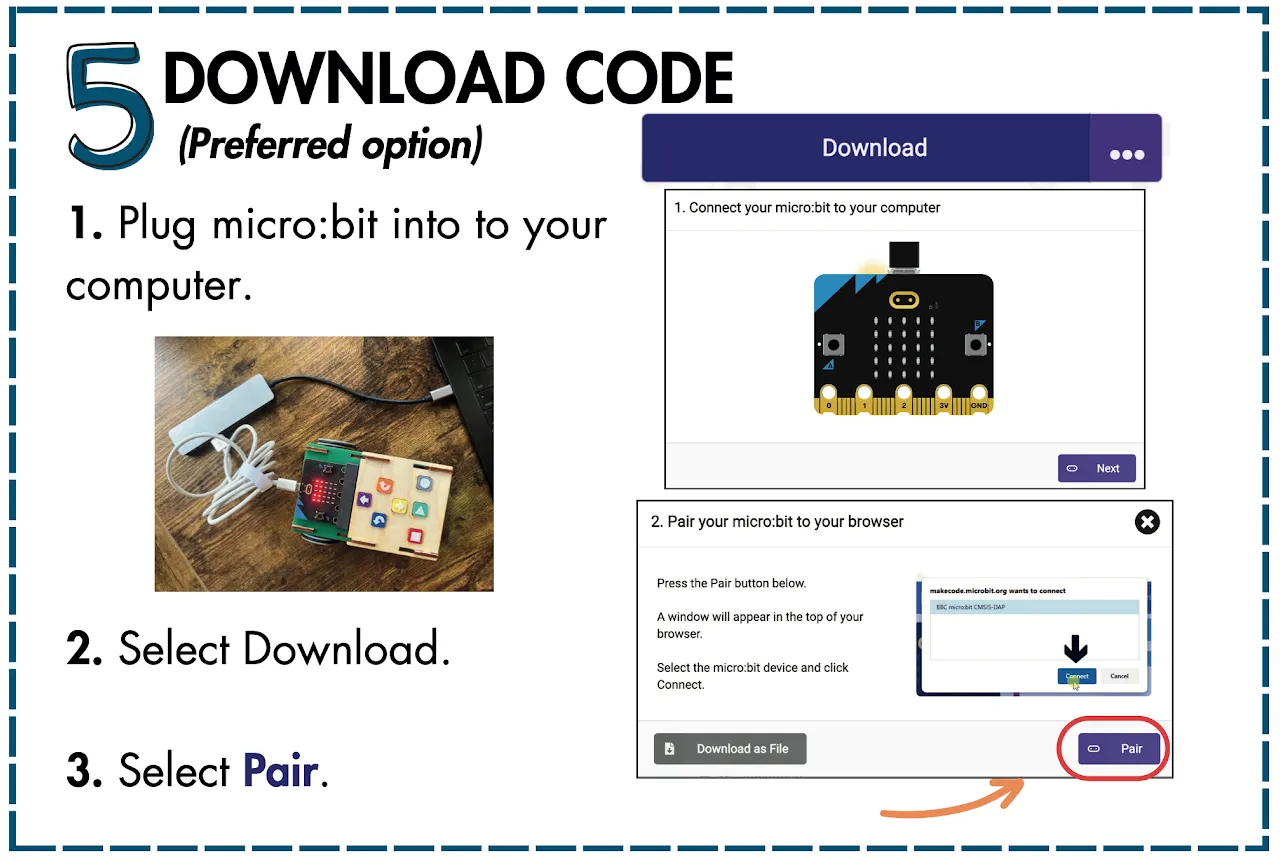
Challenge Card 5, Download Code (preferred option). 1. Plug micro:bit into your computer. 2. Select Download. 3. Select Pair.

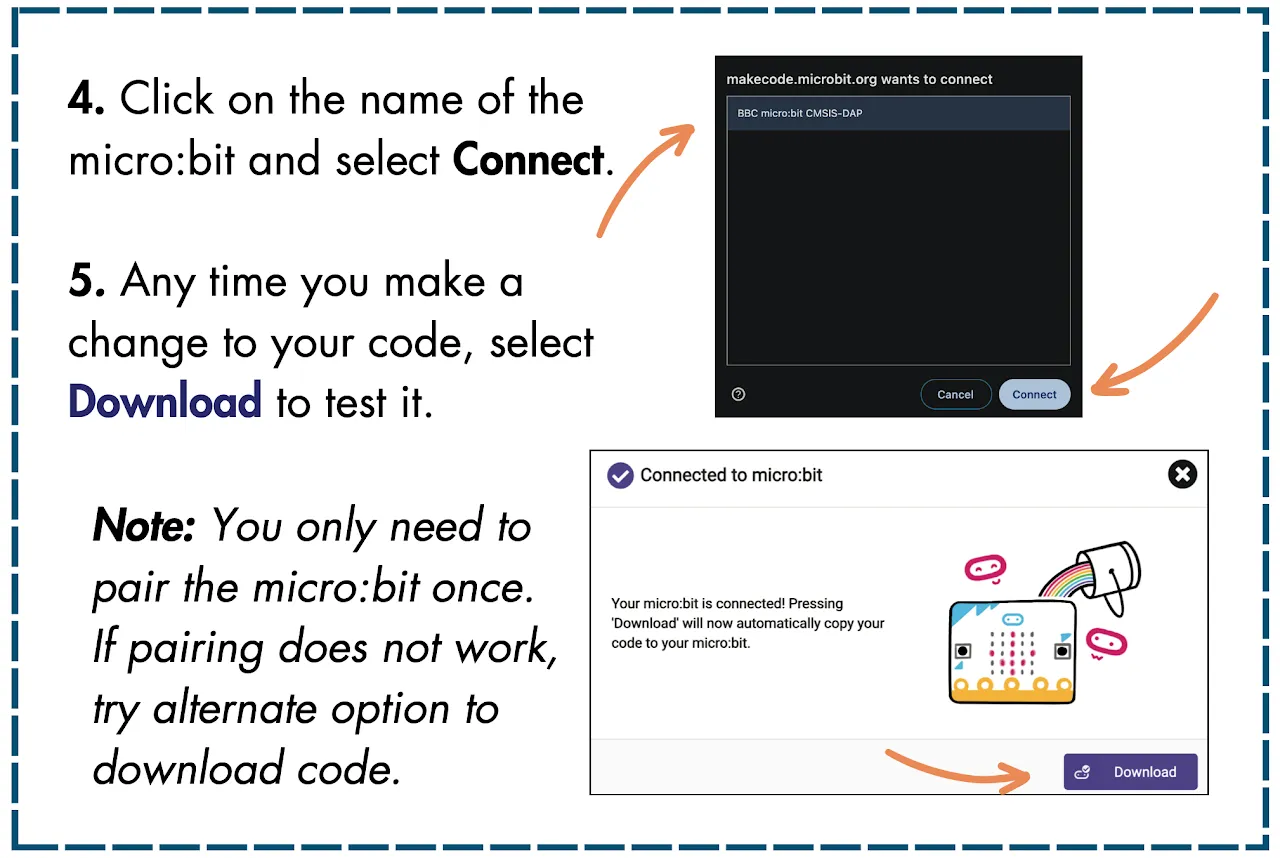
Challenge Card 5, back. 4. Click on the name of the micro:bit and select Connect. 5. Any time you make a change to your code, select Download to test it. Note: You only need to pair the micro:bit once. If pairing does not work, try the alternative option to download code.

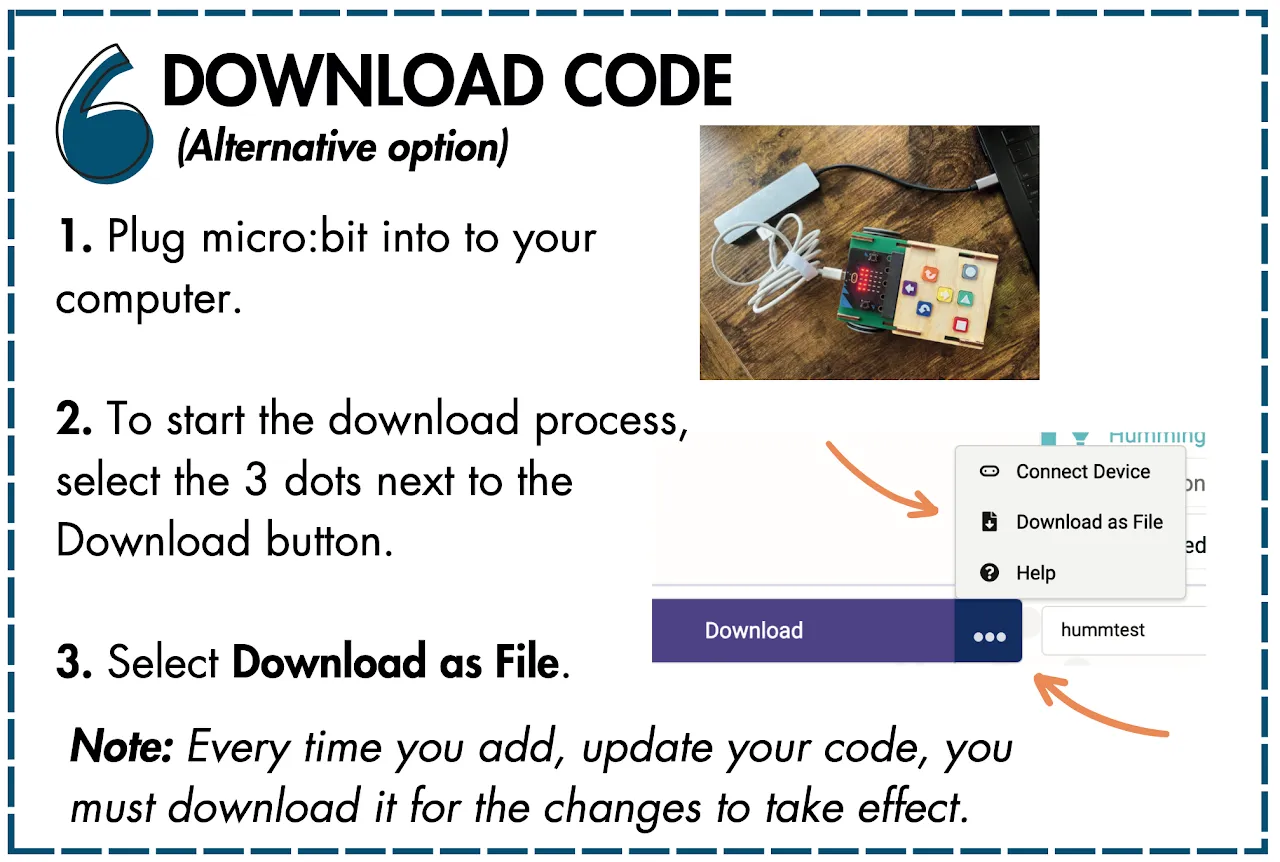
Challenge Card 6, Download Code (alternative option). 1. Plug micro:bit into your computer. 2. To start the download process, select the 3 dots next to the Download button. 3. Select Download as File. Note: Every time you add or update your code, you must download it for the changes to take effect.

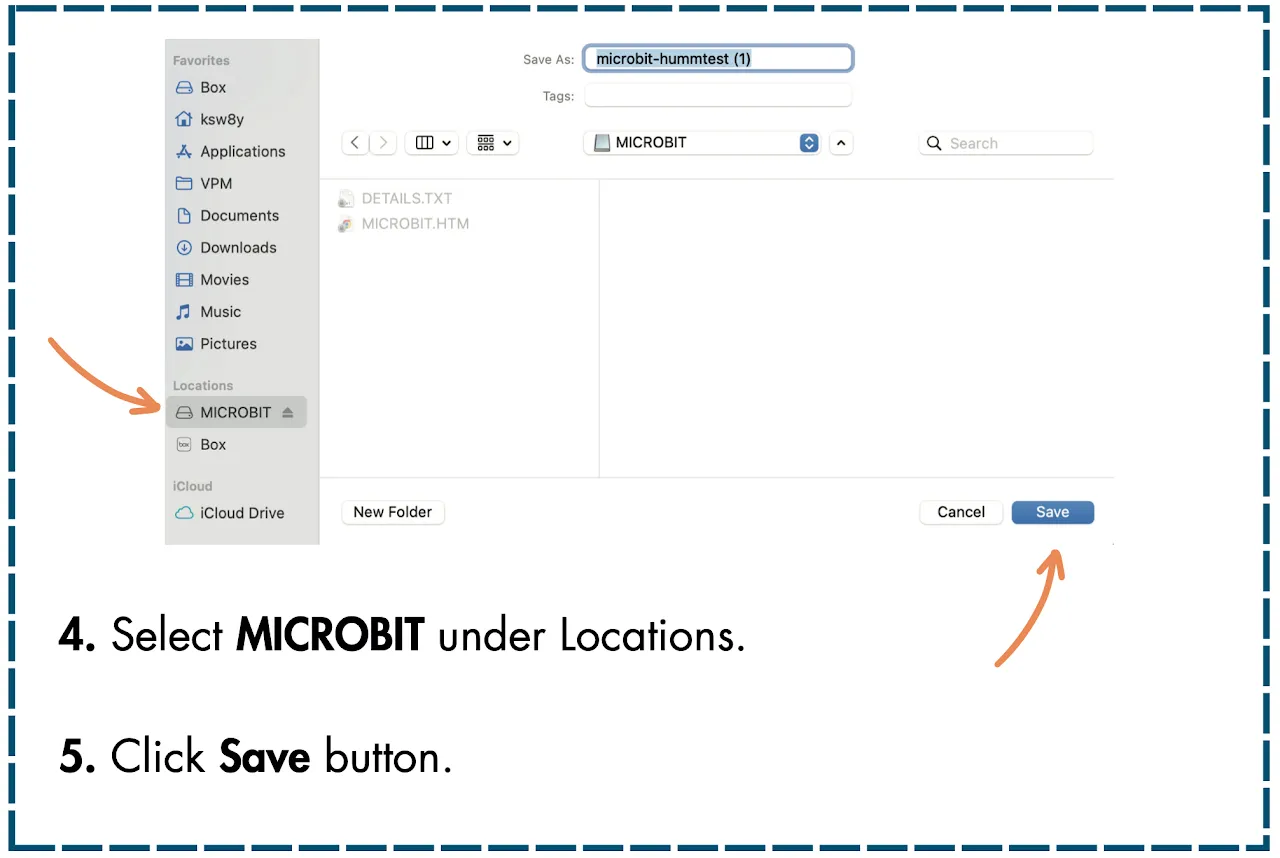
Challenge Card 6, back. 4. Select MICROBIT under Locations. 5. Click Save button.

← Logic

All Challenge Cards ►